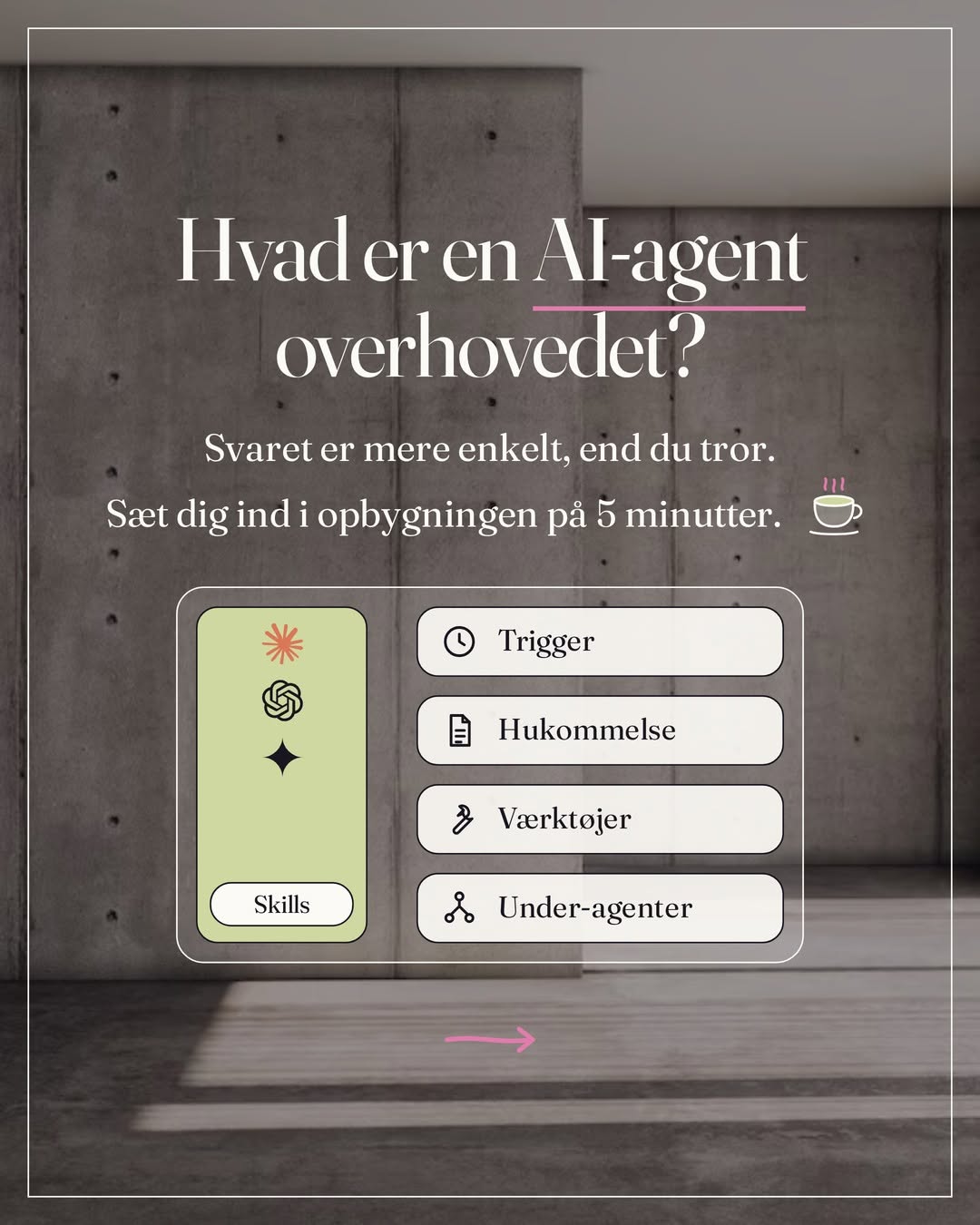
This is the setup I do with every new client before we build anything. Afterwards you have an account with the right settings, skills switched on, three systems connected and one project that knows your tone.
The order matters. The settings need to be in place before you connect email and calendar. And the project needs your tone before you ask for the first draft. Checked against Anthropic's documentation on October 12, 2026.
The five steps
Account and login
One account, three places. The computer, the browser and the phone need to log in with the same email, otherwise projects and memory end up in three different places.
Choose a paid plan
Pro is enough to start. Tasks Claude carries out for you and scheduled tasks require a paid plan. Upgrade under Settings, then Billing. The new version of Claude arrives in waves, so a new Pro account may still show Chat and Cowork in the message field for a while. You can't switch it on yourself.
Get the desktop app
claude.com/download, for Mac and Windows. That is the version that reaches your files, your browser and your computer. Log in with the same account as on claude.ai.
Get the mobile app
iOS or Android. Same login. Then you can answer Claude from your phone when it asks in the middle of a task.
Check that you are the same person in all three places
Open Settings on each device and see that the email is the same. If you have both a private and a work account, pick one for this and stick to it.
I run everything on one account and separate clients and my own work with projects, not with logins. It is easier to keep track of, and the memory comes along.
Settings you check once
Four places under Settings. It takes ten minutes, and those are the ten minutes people skip.
- Privacy
See whether your conversations may be used for training, and decide for yourself. The setting is called Help improve our AI models and usually has to be switched off actively. Also read what is stored, and for how long.
- Capabilities
Check that Code execution and file creation is on. It is on from the start, and without it Claude can neither use skills nor build files: spreadsheets, documents, presentations. In the new version of Claude there is no web search switch. Claude searches when it helps. If you still see Chat and Cowork, you switch on web search in the message field under the tools.
- Memory
Here you see what Claude remembers about you, split into topics. Edit or delete what is wrong. This memory covers your ordinary conversations and tasks. Each project has its own memory beside it, which you edit inside the project.
- General, then Instructions for Claude
Write three lines: who you are, what you work with, and how you want answers. It applies to every conversation, in every project. If you wrote Global instructions in Cowork, they have moved here.
I am a freelance photographer in Aarhus. I write in Danish, short and without exclamation marks. Never send anything, and never delete anything, without asking first. Deliver drafts, not finished decisions.
Under Settings, then Usage, you can follow your usage. Long tasks use more than a quick question. Look there before you wonder why the limit has been reached.
Switch on skills
A skill is a fixed way of working that Claude follows when the task calls for it. Anthropic has already built the first ones for you. You only have to find them.
Open Customize, then Skills
If you see no skills, go back to step 02 and check Code execution and file creation. That is what unlocks them.
Switch on Anthropic's own
Excel, Word, PowerPoint and pdf. With those on, Claude builds spreadsheets with formulas that work, and documents that look finished. You don't need to call on them; Claude chooses them itself when the task fits.
Look in the library
Click the Discover tab, or the plus, then Browse skills. Only add what you understand, and only from senders you trust. A skill is instructions Claude follows, and Anthropic doesn't check the ones other people share. Read them before you switch them on.
Wait with building your own
That comes in the next guide. First you need to have tried how the built-in ones behave in a task from your own week.
Write in a conversation: build an Excel file with my fixed expenses, one row per item, and a total at the bottom. If an Excel file comes back with a formula in the total cell, it is working.
Connect your systems
A connector is Claude's access to one of your tools. Connect once, use it in every task. Start with three, not ten.
- Your email
Gmail or Outlook. Then Claude can read threads and write drafts in your tone. Drafts, not sending.
- Your calendar
Google Calendar or Outlook. Morning overview, meeting preparation, and tasks that know what your week looks like.
- Where your files live
Google Drive or Notion as a connector. A folder on your computer you give access to in the desktop app instead, with Add folder in the message field. This is where Claude fetches background and puts the finished work.
- Open Customize, then Connectors, then the Discover tab. Or claude.ai/customize/connectors. Search for the app and click Connect to Claude.
- Log in, and read what Claude gets access to before you confirm. Afterwards the app sits under Your connectors.
- Open the app there and set each tool under Tool permissions: reading tools to Always allow, writing tools such as drafts and calendar events to Needs approval, send and delete to Blocked.
- Open a chat, click the plus in the message field, then Connectors, and switch the app on. Ask: what is in my calendar tomorrow? The first time, Claude asks permission: Allow once or Always allow. If it answers correctly, the connection works.
Read first. Write with your yes. Never delete. That is how I set up all connectors for clients in the first month. The gate sits under Tool permissions on each app, and you move it yourself when you trust it. How independently Claude works in a single conversation, Manual or Auto, is in the guide to projects, skills and scheduled tasks.
Your first project
A project is a room for one area of your business, with its own instructions, its own files and its own memory. The first one you create should be the area where you write the most.
Choose one area
Client emails. Posts. Proposals. Not "my business". The narrower, the better the first draft gets.
Create the project
Click Projects in the left menu, then New project. Name it after the area. Create it on claude.ai or in the app, and it follows you on all three devices. A project built on a folder in the desktop app stays on the computer.
Write the instructions
Click Set project instructions. Four things: who you write to, what the project should help with, your tone in three words, and what Claude must never do here. Ten lines are enough. Save with Save instructions.
Add five of your own texts
Five emails you have sent yourself. Five posts you have written yourself. Upload them with the plus in the panel on the right of the project page. That is what makes Claude sound like you, not the instructions alone.
Give it a task you solved last week
Then you can compare. Read the draft, correct the instructions where it went wrong, and try again. The second round is usually the one that works.
This project helps me answer clients who write about prices and available dates. I write to private clients booking portrait photography. The tone is calm, short and personal. Never use exclamation marks. Never mention a discount unless I write it myself. Always deliver as a draft.
My brand file is in every project from day one: the tone, the words I don't use, my colours. Then I correct less afterwards. If you don't have a brand file, ask Claude to write the draft from the five texts you added.
Checklist before you build further
Eight things. If you can tick all of them, the foundation is in place.
- Same login on computer, web and phone
- Privacy reviewed, and training switched off if you want that
- Code execution and file creation checked
- Instructions for Claude written, three lines
- Anthropic's skills switched on, and tested with one spreadsheet
- Email, calendar and files connected, and tested with one question
- One project created, with instructions and five of your own texts
- One task from last week solved in the project, and the instructions corrected after it
This is step 1 and 2 of the five steps. Now comes the leap.
Next step: the guide to projects, skills and scheduled tasks, where you hand Claude a whole task and get the finished work back. And map your work, so you know which system to build first.