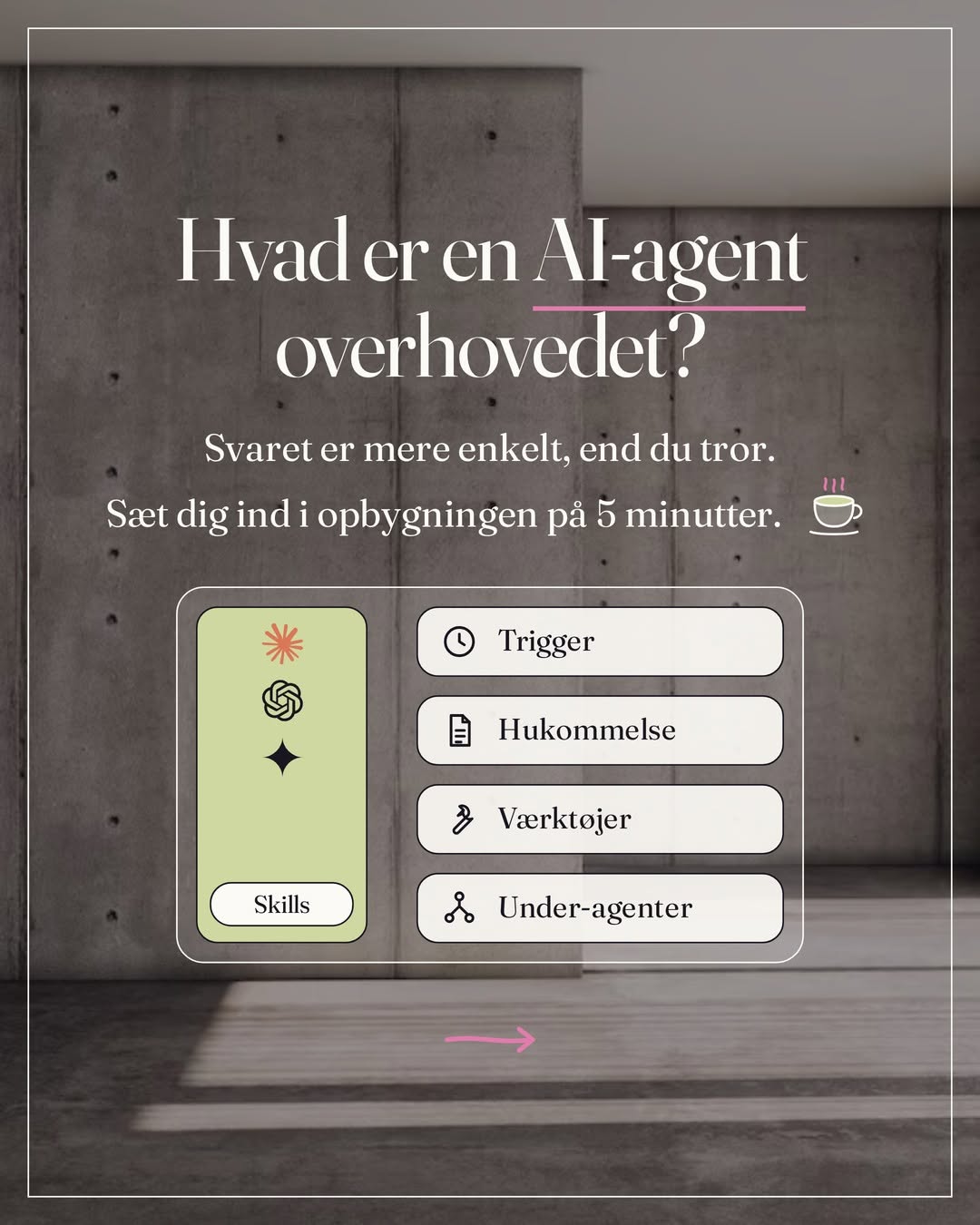
No code. Nothing technical. Written for you who work for yourself and want the finished work delivered, not an answer you have to work on further yourself.
On September 16 Anthropic began merging Chat and Cowork into one Claude, starting with Pro and Max, and since October 6 every new task on those plans runs in the cloud. You no longer choose between Chat and Cowork. You write the task in an ordinary conversation, and Claude decides whether it needs a quick answer or a task carried out. Team and Free follow later, and on a free account you still see the old chat. This guide used to be called Claude Cowork and is updated against Anthropic's documentation on October 12, 2026.
What you will find here
- 01 Security
- 02 Claude or Claude Code
- 03 Get started
- 04 What Claude can do
- 05 Projects
- 06 Skills
- 07 Projects or skills
- 08 What runs on its own
- 09 From your phone
- 10 Plugins and context
Security first
Before you connect anything, and before you upload anything. A simple rule: if in doubt, don't.
Keep this out
- Clients' personal data
Names, emails and everything that can be traced back to a person.
- Numbers and strategies that aren't public
What isn't out in the world yet.
- What you wouldn't send in an open email
That test is usually enough.
My three rules of thumb
- Don't share sensitive material carelessly
Client data, finances, contracts and personal data stay out.
- Check the settings first
Look under Privacy before you upload files or connect Gmail, Drive or Notion.
- Anonymise before you share
Use AI for structure, overview, drafts and analysis. Shorten or rewrite sensitive material first.
Most services let you opt out of your input being used for training. It usually has to be switched on actively. In Claude you switch off Help improve our AI models under Settings, then Privacy.
New in 2026: tasks run in the cloud. Your folders stay on your computer, but when a task needs a file from them, Claude fetches a copy to Anthropic's servers. The copies are deleted when you delete the task. Same rule as before, it applies even more now: keep sensitive material out, or anonymise first.
Claude or Claude Code
Claude is now two ways of working. Regular Claude takes both your questions and your tasks. Claude Code is for you who code.
Claude. The conversation and the assistant in one. Ask something, and you get an answer. Describe a task, and Claude makes a plan, works in your files and apps, and delivers the finished result: a spreadsheet, a presentation, a document, a pdf. The work runs in the cloud, so you can close the computer along the way.
Cowork. Everything Cowork could do now lives in the ordinary conversation. Your old tasks sit with your chats under Recents, and your projects, connectors and skills are the same.
Claude Code. The developer tool. Full control through the terminal or the Code tab in the desktop app. For you who code, and for agents that need to run on your own machine or a server. For most people this is not where you start.
| Claude | Claude Code | |
|---|---|---|
| It is for | Questions, ideas and work that gets done | Software development |
| Where you start it | Web, mobile, desktop and the Chrome side panel | Terminal, editor, the Code tab in the desktop app or claude.ai/code |
| Where it runs | In the cloud. The desktop app gives access to your files, your browser and your computer | On your computer, a server or in the cloud |
| Your files | Uploaded, saved on your Claude account, or in a folder on your computer through the desktop app | Directly in your project |
| Scheduled tasks | Yes, runs in the cloud | Yes, in the cloud (routines) or on your computer |
| Who | Everyone, no technical background needed | Developers |
| Plans | Conversations on every plan, tasks on the paid ones | Paid plans |
Write to Claude whether you need an answer or want finished work delivered, and say what should come out. Use Claude Code if you code, or when an agent needs to run on your own machine. If you still see Chat and Cowork at the bottom of the message field, your account doesn't have the new version yet. Then you choose Cowork when you want something done. You can't switch the new version on yourself, it arrives on its own.
Get started
If you can describe in words what you want done, you already have what it takes.
Get the app, or open claude.ai
The desktop app for Mac and Windows is at claude.com/download. That is the full version: it reaches your files, your browser and your computer. On claude.ai and in the mobile app you can do the same, except what lives on your computer. The app is free, tasks require a paid plan.
Write in an ordinary conversation
You don't choose between Chat and Cowork. Open a new conversation and write the task there. If your account doesn't have the new version yet, choose Cowork at the bottom left of the message field. In the Chrome side panel it works the same way.
Describe your task
Write in ordinary words what should come out, in which format, and which files or apps Claude should work from. Claude builds a plan, splits it into steps and gets going.
Give access, and approve the plan
The first time Claude needs a folder, it asks permission. Click Allow. Only give access to the one folder you need. Follow along, steer along the way, or walk away and come back to something finished.
A setting in the message field controls how independently Claude works. It applies to the whole conversation, and you can switch along the way.
Manual. Claude asks before it acts, and you choose Allow or Deny. This is the default. Start here.
Auto. Claude keeps working without asking at every step, but checks each action for safety and stops what it doesn't trust. Uses more of your usage.
Skip all approvals. Only in the old version with Chat and Cowork. No questions and no check. Only when you trust everything the task touches.
Whatever the setting, Claude asks before it permanently deletes files. There you have to click Allow.
The task runs in the cloud. Close the computer, and Claude keeps working. The exception is your local files, your browser and your computer: Claude only reaches those while the desktop app is open.
What Claude can do
More than a conversation with access to your files. When you hand Claude a task, it delivers something finished.
- Direct file access
Reads, edits and creates files in the folders you have given access to in the desktop app. You don't have to upload or move anything yourself.
- Finished formats
Excel with formulas that work. PowerPoint, Word and pdf. Saved in your folder or on your Claude account.
- Several agents at once
Big task. Claude sets several agents to work on each part at the same time.
- Integrations
Gmail, Google Drive, Notion, Slack and more. Connect once, use it every time.
- Browser
The desktop app has a built-in browser, nothing to install. Claude opens pages, fills in fields and fetches data. If you use Claude in Chrome, it works in your own browser instead. You choose which one Claude uses under Preferred browser in the desktop app's settings.
- Your computer
In beta on Pro and Max, Claude can use the apps on your computer: click, type and navigate the screen. You turn it on under Settings, then General, with Enable computer use, and Claude asks permission the first time it opens an app. It needs the desktop app open. On Mac it needs macOS 14 or newer, and it works on Windows too.
- Memory across
Tasks and conversations share the same memory, so what comes up in a task, Claude can use in your conversations.
- Artifacts you can share
Documents, presentations, designs and dashboards are gathered under Artifacts in the left menu. You edit them directly or ask Claude to, and share them with a link. Documents and presentations can be downloaded as Word, PowerPoint or pdf.
- Standing instructions
Set up your tone, your formats and your background once under Instructions for Claude. Then it applies to every conversation.
- Go to Customize, then Connectors, then the Discover tab. Or open claude.ai/customize/connectors. Search for the app: Gmail, Google Drive, Google Calendar, Notion, Slack and more.
- Click Connect to Claude, sign in to the app, and see what Claude gets access to before you confirm. Afterwards the app sits under Your connectors as Connected.
- Decide what Claude may do without asking. Open the app under Your connectors and set each tool under Tool permissions to Always allow, Needs approval or Blocked. My rule: reading is always allowed, writing only with my yes, deleting never.
- In the conversation, click the plus in the message field, then Connectors, and switch the app on for that conversation. The first time Claude uses a tool, it asks: Allow once or Always allow.
If the app isn't in the directory and the service has its own address for Claude, click Add custom connector and paste the address. On the free plan you can add one of those. Disconnect signs Claude out of the app, Remove takes it off your account.
When Claude has written a draft, select the text you want to change, click Edit with Claude, and write what should be different. It edits exactly where you selected.
Tasks that search, run code and build files use more of your usage than a quick question, and Auto uses even more. Gather related tasks in one conversation, and start a new conversation for what doesn't belong together. If you only need a quick answer, say so.
Your own rooms
A project is a closed workspace for one area of your business. Each room has its own files, its own memory and its own instructions. Nothing spills over into another.
- Memory that stays
Claude remembers what you have agreed, from task to task. Your tone, your client, your earlier choices. You don't explain it from scratch.
- Its own context
Each project points to its own folders, links and instructions. Client work stays in the client room. Content stays in the content room.
- Scheduling per room
A weekly task in one project only draws on that project's context.
- Comes with you
New projects are saved on your Claude account and are ready on web and phone. Projects built on a folder on the computer stay on the computer.
- Click Projects in the left menu, then New project. Give it a name.
- Write the instructions under Set project instructions and save with Save instructions. This is where your brand file and your rules belong.
- Add files with the plus in the panel on the right. If you edit a file later, upload it again.
- If you want to build the project on a folder on your computer, do it in the desktop app: Projects, the plus, then Use an existing folder. Those projects stay on the computer and don't show up on your phone.
I put my brand file into the project right away. The tone, the words I don't use, my colours. Then Claude knows the direction from the first sentence, and I don't have to correct afterwards.
Skills. Your standing workflows
A skill is a process you write down once, and which Claude follows from then on. Think of it as a fixed way of working. Build it once, use it everywhere.
It is
- A process written in plain text
- Something that only loads when it is needed
- The same in Claude and Claude Code
- Built without code
- Ready to use again and again
It is not
- A workspace. That is a project
- A plugin
- Memory. A skill doesn't remember
- Tied to one project. It applies everywhere
- Difficult. A single text file is enough
- Check that Code execution and file creation is on under Settings, then Capabilities. It is on from the start.
- Write to Claude in a chat: build a skill for this. Ask me how I work, and give it to me as a zip file. Claude asks questions and writes the file for you. You don't need to know how to code.
- Download the zip file. Go to Customize, then Skills, click the plus, then Create skill, then Upload a skill, and pick the file.
- Switch it on with Turn on. Now it sits under Your skills, and you can edit it from there. Type a slash in the message field to pick it yourself.
A skill you get under Discover or from other people isn't checked by Anthropic. Open it and read what it says before you turn it on. And never write passwords or keys into a skill.
Always write captions in my tone. Read through a post and flag it if it sounds too English. Answer an enquiry in the same calm style every time.
Projects or skills
They sound alike. They aren't. A project gathers context and files for one area. A skill is a fixed process that comes along everywhere.
| Project | Skill | |
|---|---|---|
| What it is | A workspace with instructions, files and memory | A folder with a fixed way of working |
| It gives Claude | Your context | A way to solve the task |
| Loads | In every task in the project | Only when the task calls for it |
| Applies | Only that project | Claude and Claude Code |
| Plans | All, free up to five | Paid plans, requires code execution switched on |
Use them together. The project gives Claude all your context. A skill gives it the precise way of working. A client room plus a reply skill becomes replies in your tone, every time.
What runs on its own
Write a task once, and tell Claude how often it should run. Claude carries out the whole task at the agreed time, with your connectors and the files on your account. The computer doesn't need to be on.
- Write in a conversation what the task is and how often it should run, for example every Monday at 8. Claude can run hourly, daily, weekly, on weekdays or only when you ask.
- Answer Claude's questions, read through the name, the schedule and the instruction, and click Schedule. In the old version the route is Scheduled, then New task.
- Claude runs the task in the cloud at the agreed time. Under Scheduled in the left menu you see the runs, edit the instruction, pause it, or run it now.
A scheduled task runs without you. Tasks Claude creates run in Auto by default, where Claude decides itself whether to use a tool set to Needs approval. What must never happen without you, you therefore set to Blocked under Tool permissions on the app, and in the instruction you write what Claude should deliver instead: a draft, not a sent email.
- Morning overview
Every morning. Check calendar and inbox, gather the day's most important in a note.
- Weekly newsletter draft
Every Friday. Gather the week's notes into a draft, ready to polish.
- A look at your niche
Every Monday. Gather what others in your field have published, in a short note.
- The week's numbers
Every Monday. Fetch the numbers from your connected tools, and write a short status.
Scheduled tasks work with your connectors and with files saved on your Claude account. If a task needs files on your computer, the desktop app has to be open when it runs. Read the first run through, and correct the instruction. The second run is usually better than the first.
If you want it to run with a log and an alarm, or on a server: the five steps show the three ways.
Tasks from your phone
Tasks follow your account. Start a task on the computer, answer Claude's questions from your phone on the way to a meeting, and pick up the result wherever you are. You can also start the task from your phone.
Open Claude on your phone
Latest version of the app for iOS or Android. Write the task in a conversation, the same as on the computer.
Find the same task
Tasks you have started on the computer are under Recents. Keep writing, change direction, or approve.
Get notified
The phone makes a sound when Claude is done, or when it needs your yes.
the task comes with you
Dispatch was one running thread where the phone controlled your computer: the local files, the programs, the browser. It was a closed beta on Pro and Max, so most people never had it. With the new Claude, Dispatch is closed to new users. If you already have it, you can keep using it for now. Everyone else uses tasks in the cloud as described above.
From your phone you can set real actions in motion: files are read, created and moved, emails written, pages visited. Start with folders and connectors where a mistake does no harm, while you find your footing.
Plugins and context
A plugin gathers skills, connectors and agents in one package. Instead of briefing Claude on your workflow every time, you add a plugin. Then Claude shows up knowing what to do. You find them under Customize, then Plugins, on all paid plans.
- Go to Customize, then Plugins, then Discover. Open a plugin, read what it contains, and click Add. Anthropic checks the plugins that sit in the directory.
- Open the plugin and click the Connectors tab. A plugin doesn't sign in for you: connect each app until it says Connected. The plugin's skills work from the start, but they can't reach the app until it is connected.
- Use it by describing the task, or type a slash in the message field and pick the plugin's skill. Agents in a plugin only run in tasks and in Claude Code, not in an ordinary chat.
- If you want to build your own, click Add, then Create with Claude. Claude asks what the plugin should do, writes it and shows it as a card in the conversation. Click Save plugin, and it sits under Yours. If you have a file from someone else, the route is Add, then Upload plugin.
Switch a plugin off with Disable plugin, or remove it with Remove in its menu. Plugins you upload or fetch from other people's addresses aren't checked by Anthropic. Read their skills and connectors before you add them.
How your context sits in layers
- Standing instructions
Your role, your tone, your background. Applies to every conversation. Write them under Settings, then General, in the field Instructions for Claude. If you wrote Global instructions in Cowork, they have moved there.
- Project instructions
Each project can have its own. You write those yourself. What Claude learns along the way lands in the project's memory.
- Folder instructions
If you work in a folder on your computer, you can put a text file in it with background, brand guidelines and earlier choices. Claude can keep that one up to date itself while it works.
- Plugins and skills
Specialized processes that load when they are needed. Plugins under Customize, then Plugins. Skills under Customize, then Skills.
Tasks run in an isolated environment on Anthropic's servers, separate from your computer and your network. Claude only reaches your computer, your folders and your browser through the desktop app, and only with your permission. It shows its plan before it edits or moves anything, and asks before it permanently deletes files.
Your next step once this is in place: build your first agent, and see where you stand on the five steps.